Powershell 是微软推出用于取代CMD的一款命令行工具。虽然使用上非常的强大,但是其外观一如以往的CMD一样,非常的丑。作为“颜值就是正义”的信徒,就想着动手改造一下,以此文来做个记录。
最终效果展示:
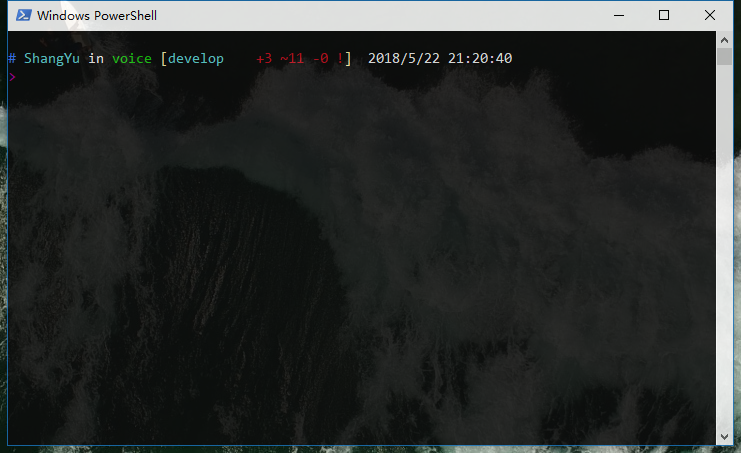
环境配置
- Windows10
- Powershell 5.1
字体
Microsoft YaHei Mono = YaHei + Consolas
将PowerShell的字体改为这个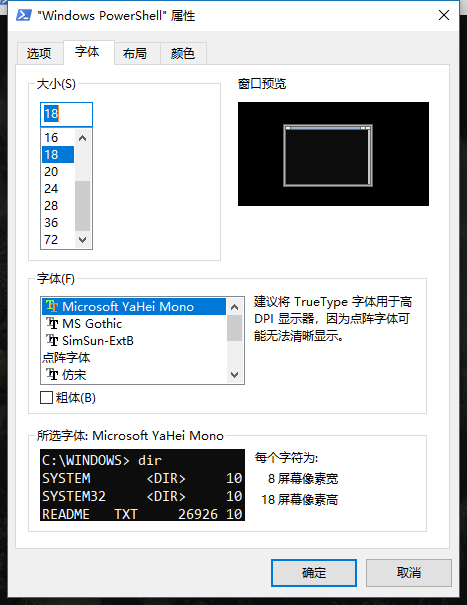
配色
Microsoft出过一个用于Powershell的配色工具ColorTool
下载解压后,在解压后的文件夹里打开Powershell,运行1
colortool -b campbell
Powershell就应用了campbell schemes
该工具默认提供了以下Schemes:
- campbell : The new default color scheme for Windows Console
- campbell-legacy : The first iteration of the campbell scheme
- cmd-legacy : The legacy defaults of the Windows Console
- OneHalfDark : A dark vim-airline theme by Son A. Pham
- OneHalfLight : A light vim-airline theme by Son A. Pham
- solarized_dark : The dark version of a popular color scheme by Ethan Schoonover
- solarized_light : The light version of a popular color scheme by Ethan Schoonover
- deuteranopia : A color scheme targeted towards making red and green clearer to users with red green colorblindness, and deuteranopia.
如果想看看更多的Schemes,可以到iTerm2-Color-Schemes上下载,只要把下载的itermcolors格式文件放到colortool下的schemes文件夹下即可。
Powershell主题设置
如果有用过oh-my-zsh的,肯定对上面各种酷炫的theme很有印象。然而在Powershell中,用Powershell configuration就可以非常简单的实现oh-my-zsh里的大部分theme。
这里以oh-my-zsh中的ys为例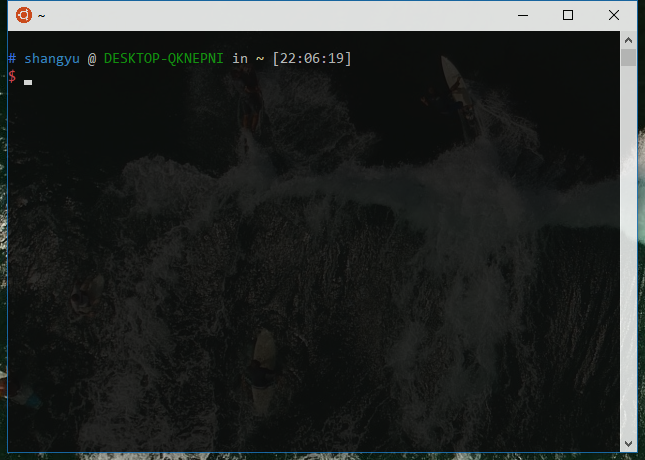
首先,打开Powershell,并输入1
notepad $((Split-Path $profile -Parent) + “/profile.ps1”)
如果不存在profile默认会创建,接着在打开的记事本里输入1
2
3
4
5
6
7
8
9
10
11
12
13
14
15function prompt {
$path = Split-Path -leaf -path (Get-Location)
$Date = Get-Date
Write-Host
Write-Host "# " -NoNewline -ForegroundColor Blue
Write-Host $env:USERNAME -NoNewline -ForegroundColor Cyan
Write-Host " in " -NoNewline
Write-Host $path -NoNewline -ForegroundColor Green
Write-Host " "$Date
Write-Host ">" -NoNewline -ForegroundColor Magenta
return " "
}
保存并重新打开Powershell后,就能发现样式就变得和ys一样了。
如果你还想显示Git status信息的话,就需要使用Posh-git,其Github主页上有它的安装方式。
Prerequisites
Before installing posh-git make sure the following prerequisites have been met.
Windows PowerShell 5.x or PowerShell Core 6.0.
You can get PowerShell Core 6.0 for Windows, Linux or macOS from [here][pscore-install].
Check your PowerShell version by executing$PSVersionTable.PSVersion.On Windows, script execution policy must be set to either
RemoteSignedorUnrestricted.
Check the script execution policy setting by executingGet-ExecutionPolicy.
If the policy is not set to one of the two required values, run PowerShell as Administrator and
executeSet-ExecutionPolicy RemoteSigned -Scope CurrentUser -Confirm.Git must be installed and available via the PATH environment variable.
Check thatgitis accessible from PowerShell by executinggit --versionfrom PowerShell.
Ifgitis not recognized as the name of a command, verify that you have Git installed.
If not, install Git from https://git-scm.com.
If you have Git installed, make sure the path to git is in your PATH environment variable.Installing posh-git via PowerShellGet
posh-git is available on the [PowerShell Gallery][psgallery-v1] and can be installed using the PowerShellGet module.
Start either Windows PowerShell 5.x or PowerShell Core 6.x (
pwsh).Execute one of the following two commands from an elevated PowerShell prompt,
depending on whether (A) you’ve never installed posh-git, or (B) you’ve already installed a previous version:
2
3
4
5
6
7
#
# NOTE: If asked to trust packages from the PowerShell Gallery, answer yes to continue installation of posh-git
# NOTE: If the AllowPrerelease parameter is not recognized, update your version of PowerShellGet to >= 1.6 e.g.
# Install-Module PowerShellGet -Scope CurrentUser -Force -AllowClobber
PowerShellGet\Install-Module posh-git -Scope CurrentUser -AllowPrerelease -ForceOR
2
PowerShellGet\Update-Module posh-git
posh-git安装好后,将之前的profile.ps1文件,修改成:1
2
3
4
5
6
7
8
9
10
11
12
13
14
15
16
17
18
19
20
21
Import-Module posh-git
function prompt {

    $path = Split-Path -leaf -path (Get-Location)
    $Date = Get-Date
    $gitStatus = Write-VcsStatus

    Write-Host
    Write-Host "# " -NoNewline -ForegroundColor Blue
    Write-Host $env:USERNAME -NoNewline -ForegroundColor Cyan
    Write-Host " in " -NoNewline
    Write-Host $path -NoNewline -ForegroundColor Green
    $realLASTEXITCODE = $LASTEXITCODE
    Write-Host $gitStatus -NoNewline
    $global:LASTEXITCODE = $realLASTEXITCODE
    Write-Host " "$Date
    Write-Host ">" -NoNewline -ForegroundColor Magenta

    return " "
}
以上,本次的美化教程到此结束。
